
Cameras & Vision
Live ESP32-CAM video, recording, object detection, tracking, zones and AI descriptions in flows
A camera is a device like any other: an ESP32-CAM flashed with the generic camera firmware registers itself, then streams encrypted JPEG frames to the server over a dedicated video channel. Everything else happens in the UI: live view, capture settings, recording, object detection and playback with the detections drawn over the video.
The pipeline has three independent pieces, all wired in a flow:
- Camera source — turns the camera stream into flow messages (a reference to the frame, never the bytes themselves).
- Video recording — writes the frames to storage as short MJPEG-AVI segments.
- Object detection — runs an ONNX model on the frames and emits the detections; optionally keeps them as a detection layer next to the recording.
No recording node means nothing is stored: live view and detection work without writing a single frame.
IP cameras (RTSP) are not devices: they are declared in Media › Audio streams with a video track, and the same Camera source node reads them (source Media stream (IP camera)).
Cameras
Media › Cameras lists every device that announced a camera, with its streaming status, capture settings and the age of the last frame.
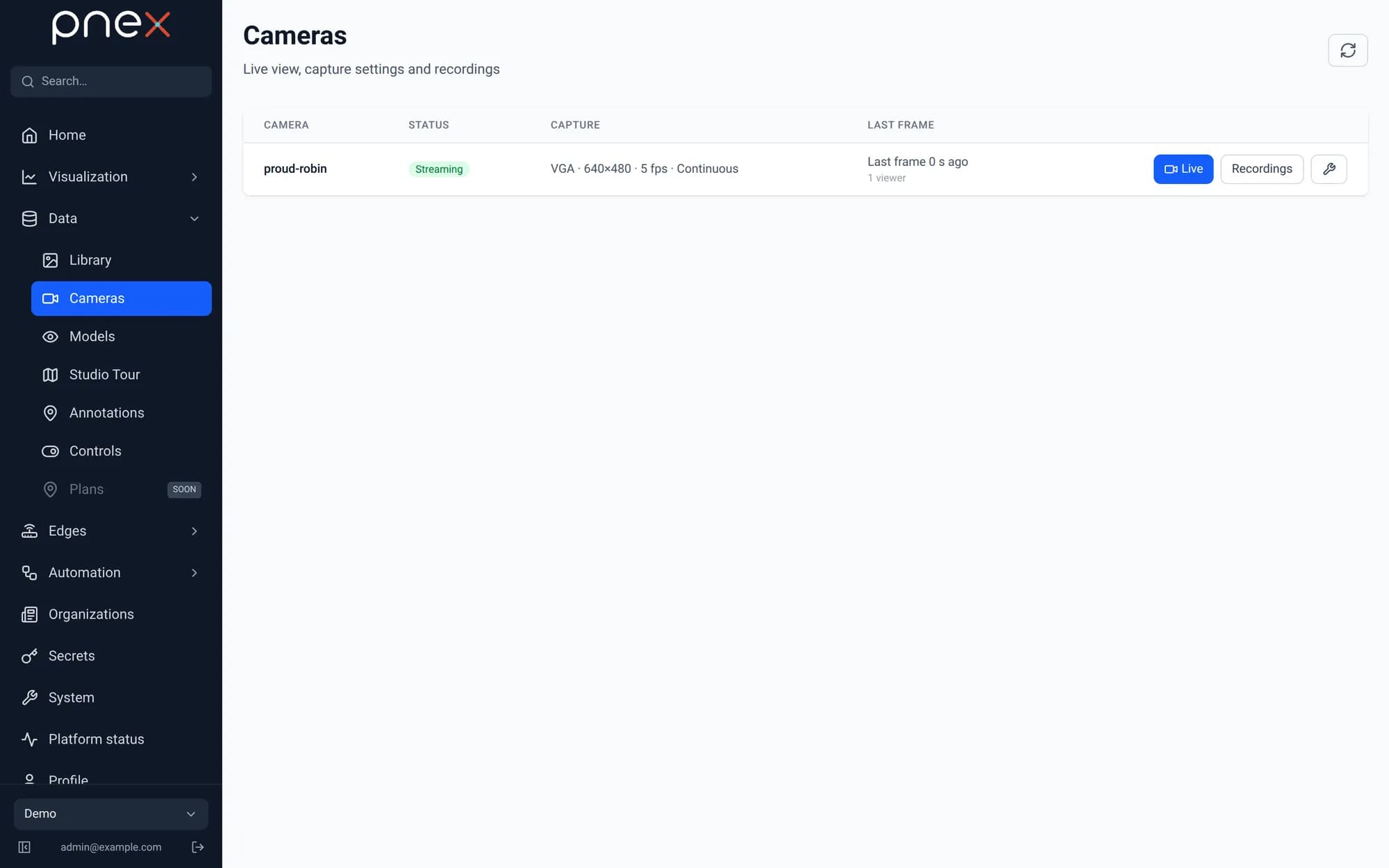
- Live opens the stream in the browser. Frames are pushed as they arrive; nothing is stored and no polling is involved. Below the stream, the Flash switch (Turn the flash on / Turn the flash off) drives the onboard flash LED (GPIO4) for every role but viewer. If the pin is not an output yet, Enable flash control sets it up; a pin used by a deployed flow shows The flash is driven by the flow … and stays greyed, since an output pin has one writer.
- Recordings opens the day timeline and the player (see below).
- The wrench opens the capture settings: resolution, JPEG quality, frames per second, flips, and the capture mode.
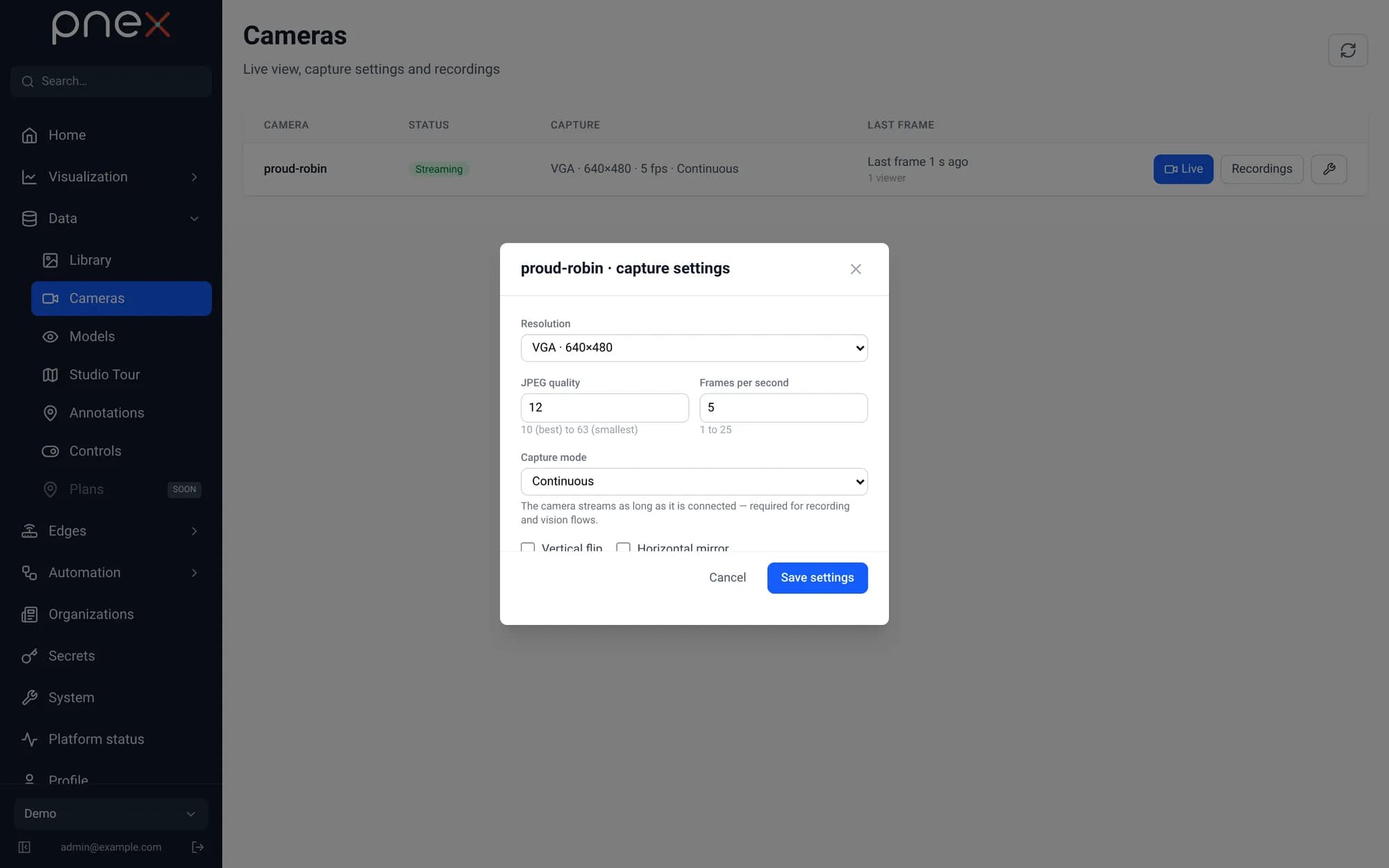
The capture mode decides when the camera sends frames:
| Mode | The camera streams… |
|---|---|
On demand (default) | only while someone watches the live view, or while a deployed flow reads it |
Continuous | as long as it is connected — the right choice for a camera recorded around the clock |
A deployed flow containing a Camera source always keeps its camera awake, even in
On demand mode.
Models
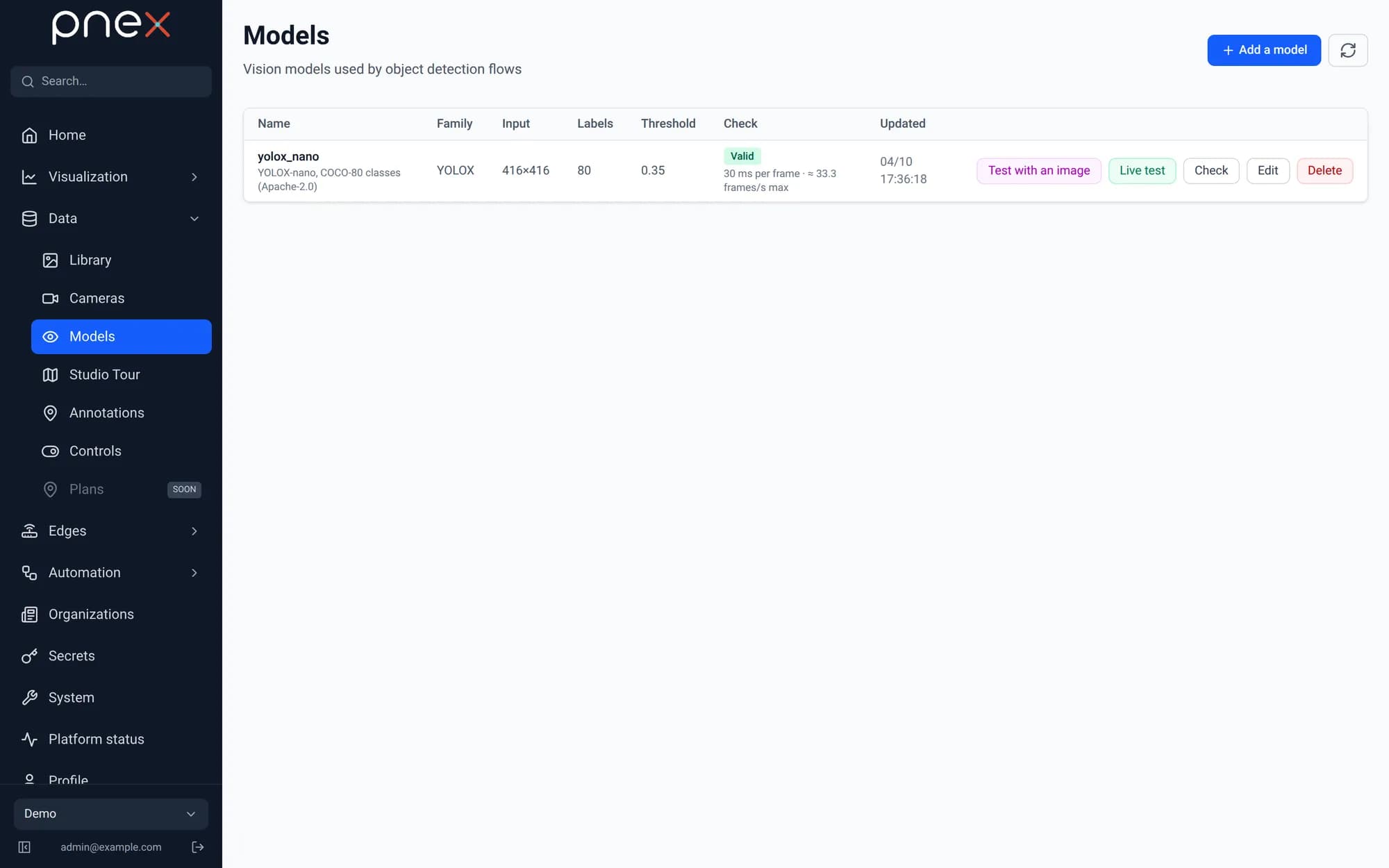
Automation › Models is the registry of the vision models your flows can use. A model is an ONNX file stored in the media library plus its inference settings: family (YOLOX), input size, labels, score threshold and NMS IoU.
Add a model
Click Add a model, then upload an .onnx file or pick one already in the media
library.
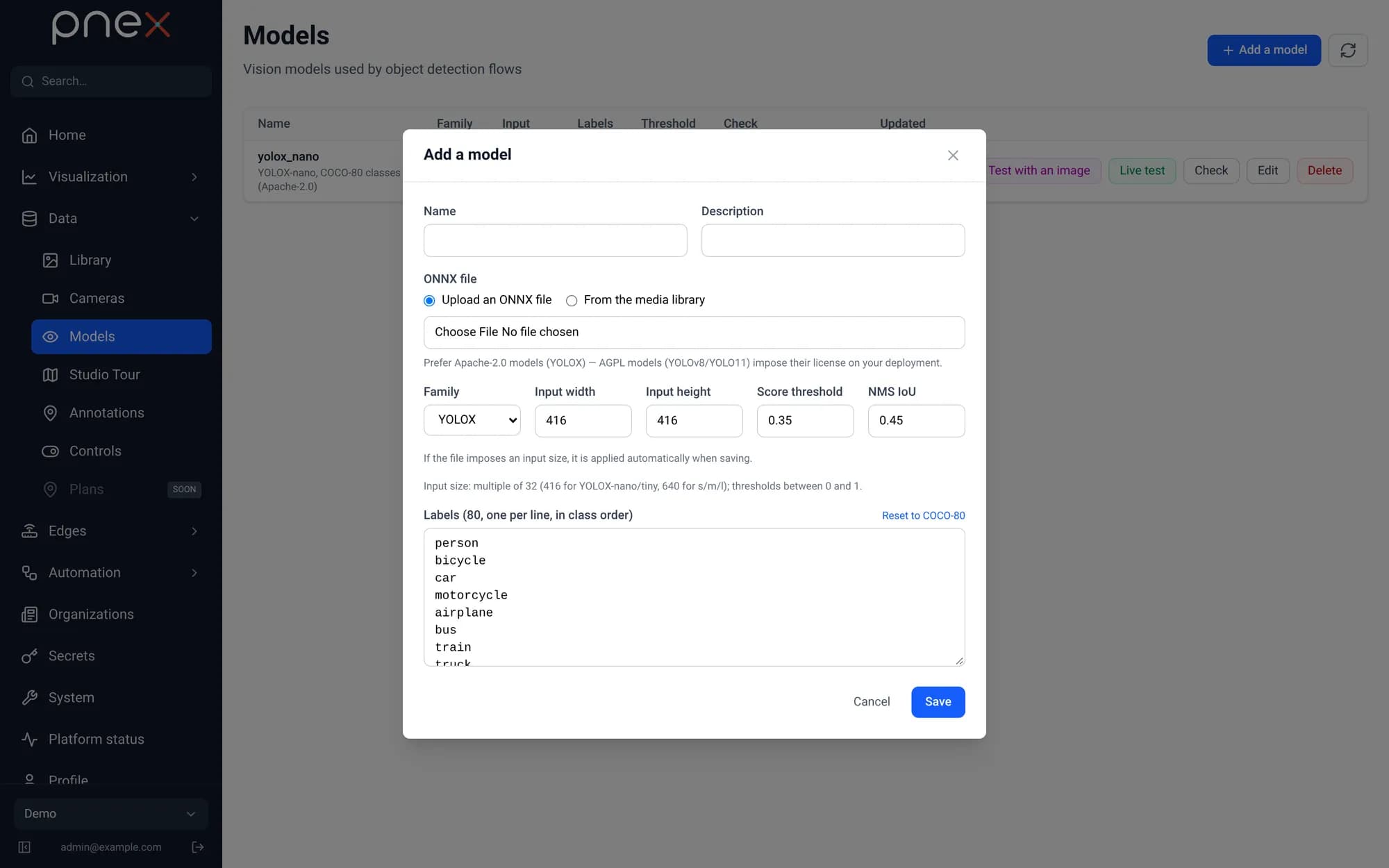
- The file decides the input size. When the ONNX file declares fixed dimensions (416×416 for YOLOX-nano/tiny, 640×640 for s/m/l), they are applied on save, whatever was typed.
- Labels are one per line, in class order. COCO-80 is pre-filled; the number of labels must match the number of classes of the file.
- The model is checked on save: it is loaded and run once on this server. A model that does not run is refused with the actual error, never stored half-working.
- The Check column shows the measured inference time and the sustainable rate (≈ frames per second). A model slower than your camera will skip frames.
Prefer Apache-2.0 models such as YOLOX. AGPL models (YOLOv8, YOLO11) impose their license on your whole deployment.
Test a model
- Test with an image runs the model on a JPEG or PNG and draws the boxes.
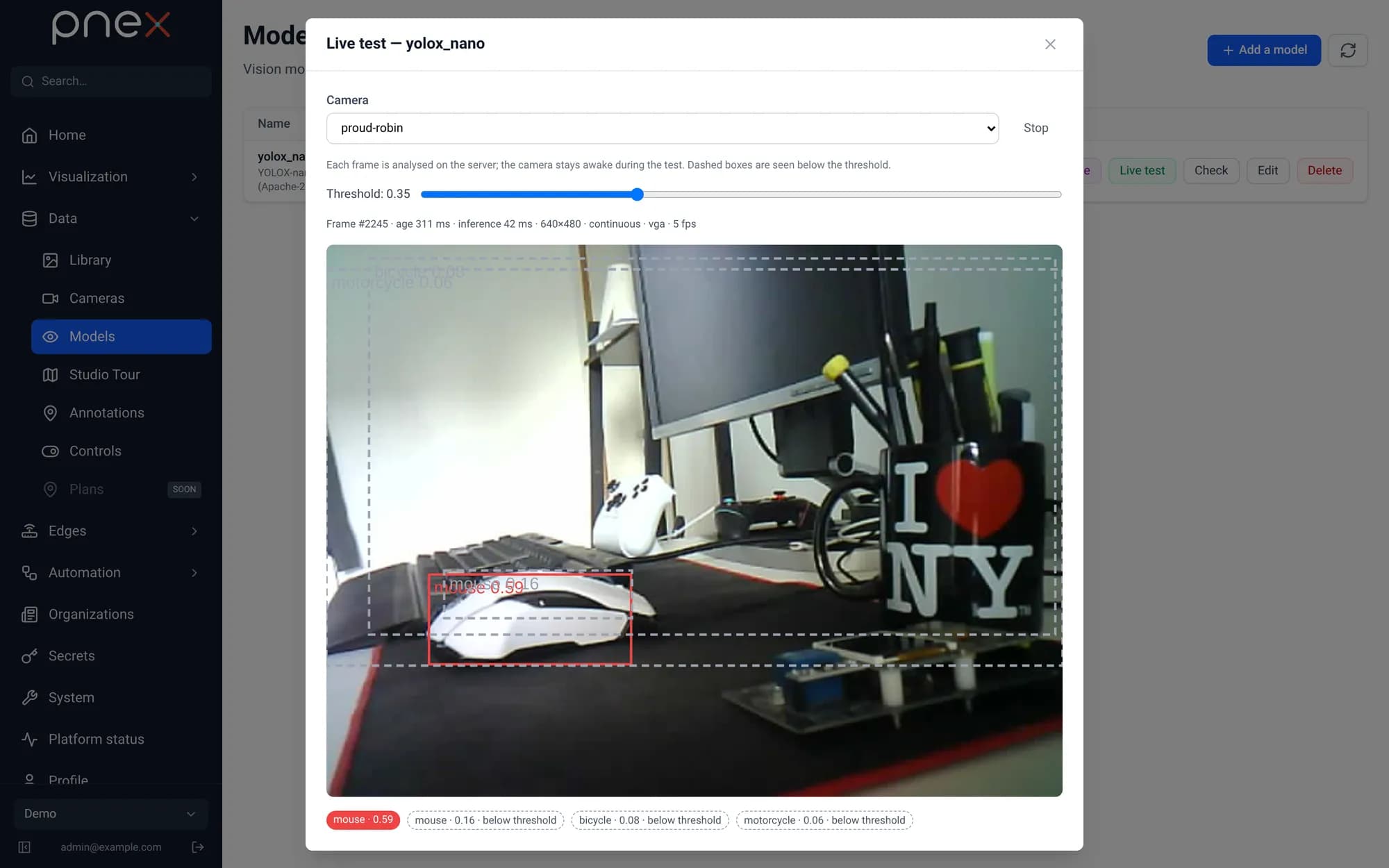
- Live test runs it on the latest frames of a camera. Boxes above the threshold are solid, those below are dashed: move the threshold slider to see what the model almost saw, then Apply this threshold to the model. Warnings flag a stale frame, an image too dark, or a model slower than the camera.
The detection and recording flow
A single flow records the camera and detects objects. Open Automation › Flows, create a flow, and add from the palette:
- Camera source — pick the Source: Camera (device) and the camera, or
Media stream (IP camera) and a stream with a video track (it must be enabled to
produce frames).
Max frames per secondsamples the stream (0 = every frame, up to 25). - Object detection — wire it after the camera source, pick the model and the labels to keep.
- Video recording — wire it after the same camera source.
- Optionally a Debug node after the detection to watch the results, then Deploy.
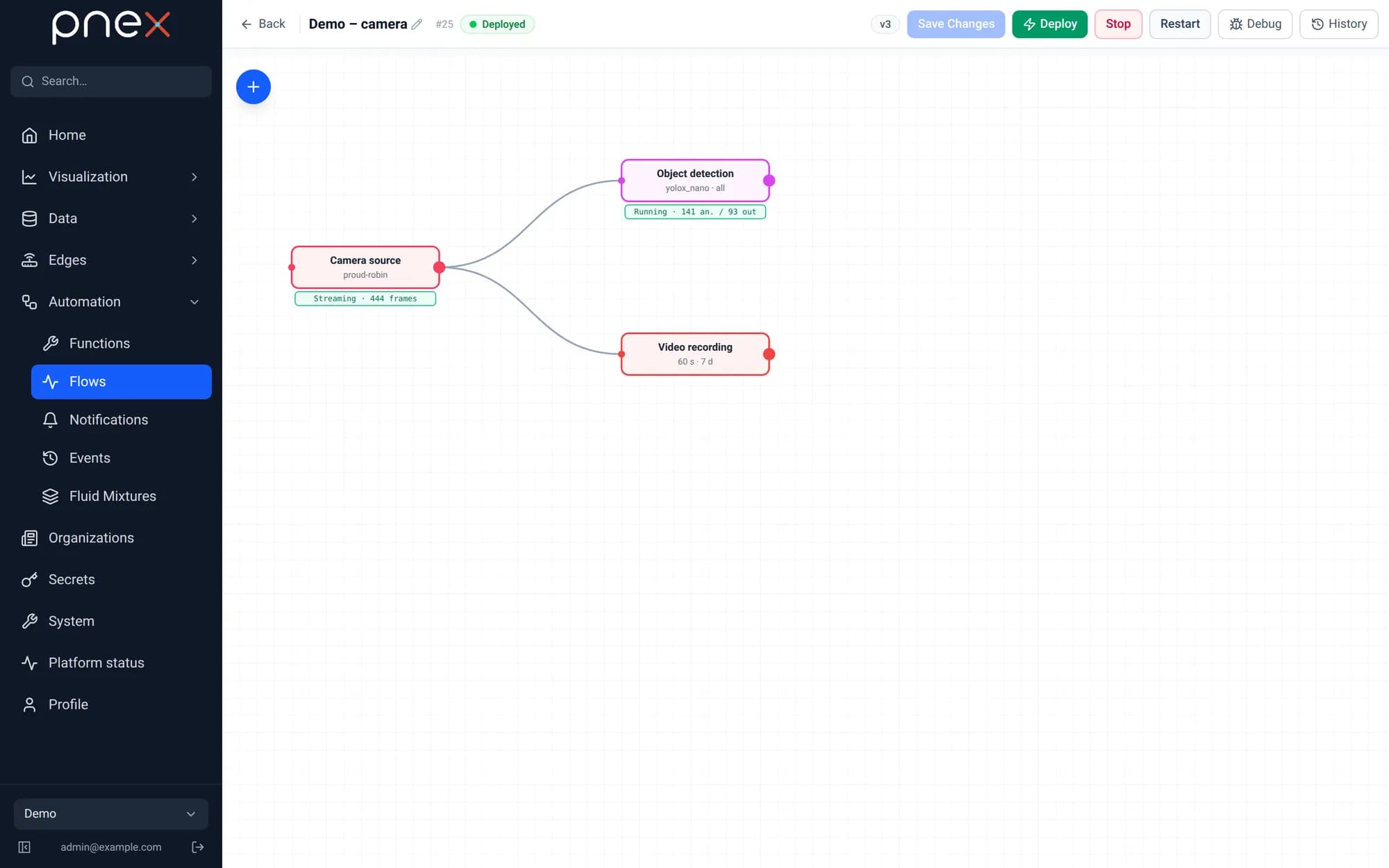
Once deployed, each node shows a live status badge under it: Streaming with the
frame count for the source, Running with analysed/emitted counters for the
detection. A model that fails to load or a camera that sends nothing shows up there
in amber or red — no need to dig into logs.
Object detection
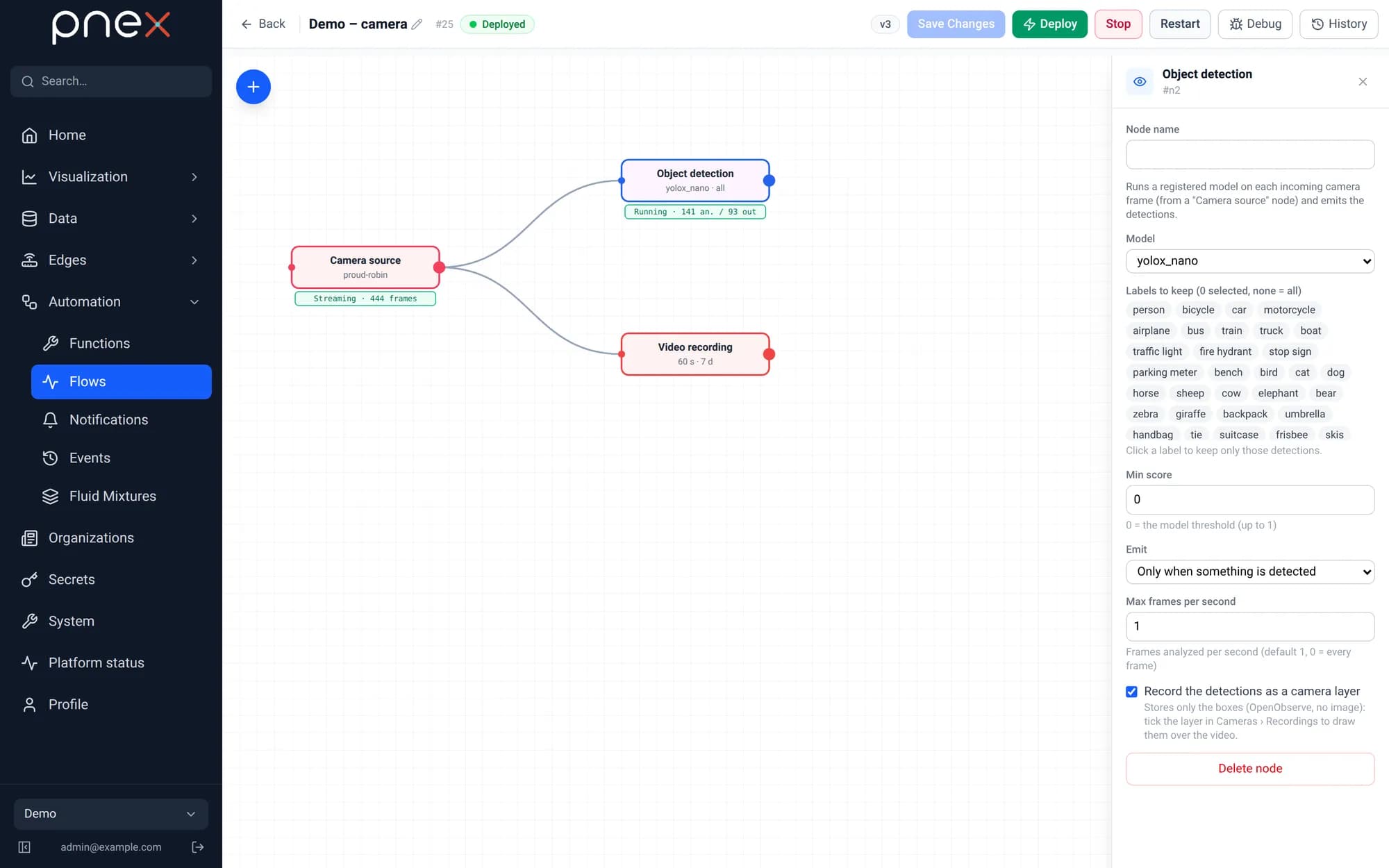
| Setting | Meaning |
|---|---|
| Model | A model of the registry (checked valid, otherwise deploy is refused) |
| Labels to keep | Click labels to keep only those detections (none = all) |
| Min score | Filter below this score; 0 = the model's threshold |
| Emit | For every analyzed frame, or Only when something is detected |
| Max frames per second | Frames analysed per second (default 1, 0 = every frame) |
| Record the detections as a camera layer | Keeps the boxes next to the recording (see below; device cameras only) |
| Doubtful frames to the Vision Lab | Sends the frames where the model hesitates to a Vision Lab project, to annotate them and train a better model |
The output payload carries detections — label, score and bbox per object —
plus a short summary ("chair 80%, tv 78%") shown on a Debug node. Chain it to a
Notification to be alerted when a person shows up, or to an Event log node
to keep a searchable history in Monitor › Events.
Video recording
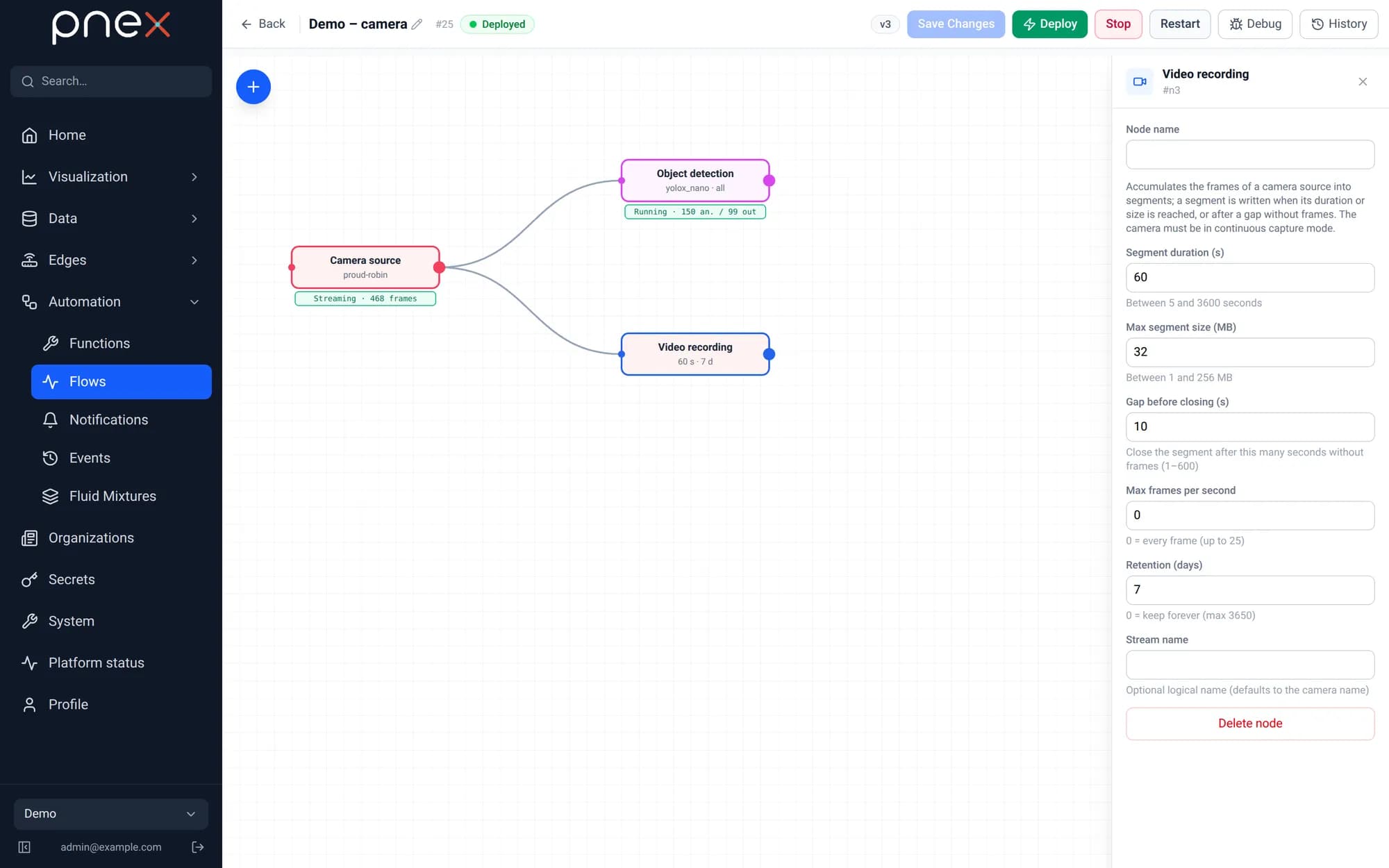
| Setting | Default | Meaning |
|---|---|---|
| Segment duration | 60 s | A segment is closed after this duration… |
| Max segment size | 32 MB | …or this size… |
| Gap before closing | 10 s | …or after this long without frames |
| Max frames per second | 0 | Recorded rate (0 = every frame) |
| Retention | 7 days | Segments older than this are deleted (0 = keep forever) |
| Label | camera or stream name | Optional recording label |
Segments are MJPEG-AVI files, readable by VLC or ffmpeg, stored in the platform's S3-compatible object storage. Short segments keep a crash from losing more than a minute, and retention works to the minute.
One camera has exactly one recorder in an organization: a second Video recording fed by the same camera is refused on save (same flow) or on deploy (another flow). Detection, on the other hand, can run in as many flows as you like.
Tracking and zones
Detection alone says what is in each frame. Two nodes of the AI & predictive palette group turn it into events about objects over time.
Object tracking follows the objects found by Object detection from frame to
frame and gives each one a stable track_id while it stays in view. Output 1 lists the
current tracks; output 2 emits appear / disappear events with the duration and
the average confidence. Wire output 2 to Event log to search them on the
Events page.
| Setting | Default | Meaning |
|---|---|---|
| Score to open a track | 0.5 | Weaker detections only keep an existing track alive |
| Min overlap (IoU) | 0.2 | How much a box must overlap its track to stay the same object |
| Frames before appearing | 2 | A detection seen on fewer frames is treated as noise |
| Lost after (s) | 3 | An object unseen for this long disappears |
At 1 frame per second, keep Lost after at 3 s or more, and lower Min overlap if fast objects get a new id at every frame. Set the detection Min score below Score to open a track so weak detections keep a track alive.
Image zones takes output 1 of Object tracking. In the node panel, pick a Camera shown behind the zones, click on the image to place the points of a zone, Close the zone and name it (up to 16 zones). Each object entering or leaving a zone emits an enter / exit event with the number of objects now in the zone, which covers counting and occupancy without another node.
- Point tested: Bottom of the box (feet, wheels) (default) or Centre of the box.
- Min presence (s) delays the enter event ("a person in the zone for more than 10 s"); a shorter visit stays silent.
- Labels counted keeps only some classes.
- Zones are drawn in image coordinates and apply to every camera reaching the node: use one Image zones node per camera viewpoint.
For an alert, wire Image zones to Notification (filter on the event in between if only entries matter), or to Event log and create the alert on the Events page. Neither node ever drives a device.
Describing what happens
These nodes call the organization's own AI model (Settings › Organizations → organization detail → LLM providers); PneX ships none.
- Image description describes a frame in words. Feed it with Camera source, Object detection or Object tracking; Describe the best detection only crops the most confident object (state, colour, readable text). One caption every (s) per camera (10 s by default) limits the calls. The default provider must accept images. The image leaves PneX for that provider: wiring this node is that choice, so pick a local model if images must stay on site.
- Video description collects, over a Window (30 s by default), the transcripts of a Media source, detection, tracking and zone events, and image descriptions, and writes a short time-stamped description where every sentence cites its inputs. Detections count as facts, speech as reliable, image descriptions as indicative; a sentence without a source is dropped.
- Text decision answers typed questions about a text (a video description, a transcript) with a probability per answer, for example "incident" or "routine", or an urgency level, without writing any text. Each question is One choice or a Level (one per line, lowest first). The decision model runs on the PneX server and nothing leaves it; the platform administrator installs it. Put it before Video description so the AI model only describes the windows that matter.
A typical chain: Camera source → Object detection → Object tracking → Image zones and Image description → Video description → Event log.
Descriptions are AI-generated and indicative: store or show them, never let them drive a device. Out of the box, Text decision probabilities are a ranking rather than a calibrated truth: check them on real examples before alerting on a threshold. Image description and Video description share a daily cap of model calls per organization; "AI model call failed" on a node means no provider, a text-only model, the cap reached, or a frame that expired (keep the node right after the camera chain).
Recordings and detection layers
Recordings shows one day at a time as a continuous recording, even though it is stored as segments:
- the timeline marks the recorded periods; drag the slider to jump anywhere;
- the player chains the segments (next one preloaded), at ×1 to ×8;
- export the hour under the playhead as a single AVI file, or delete the day;
- Detection layers lists every detection node that recorded boxes that day. Tick a layer to draw its boxes over the video, one colour per layer.
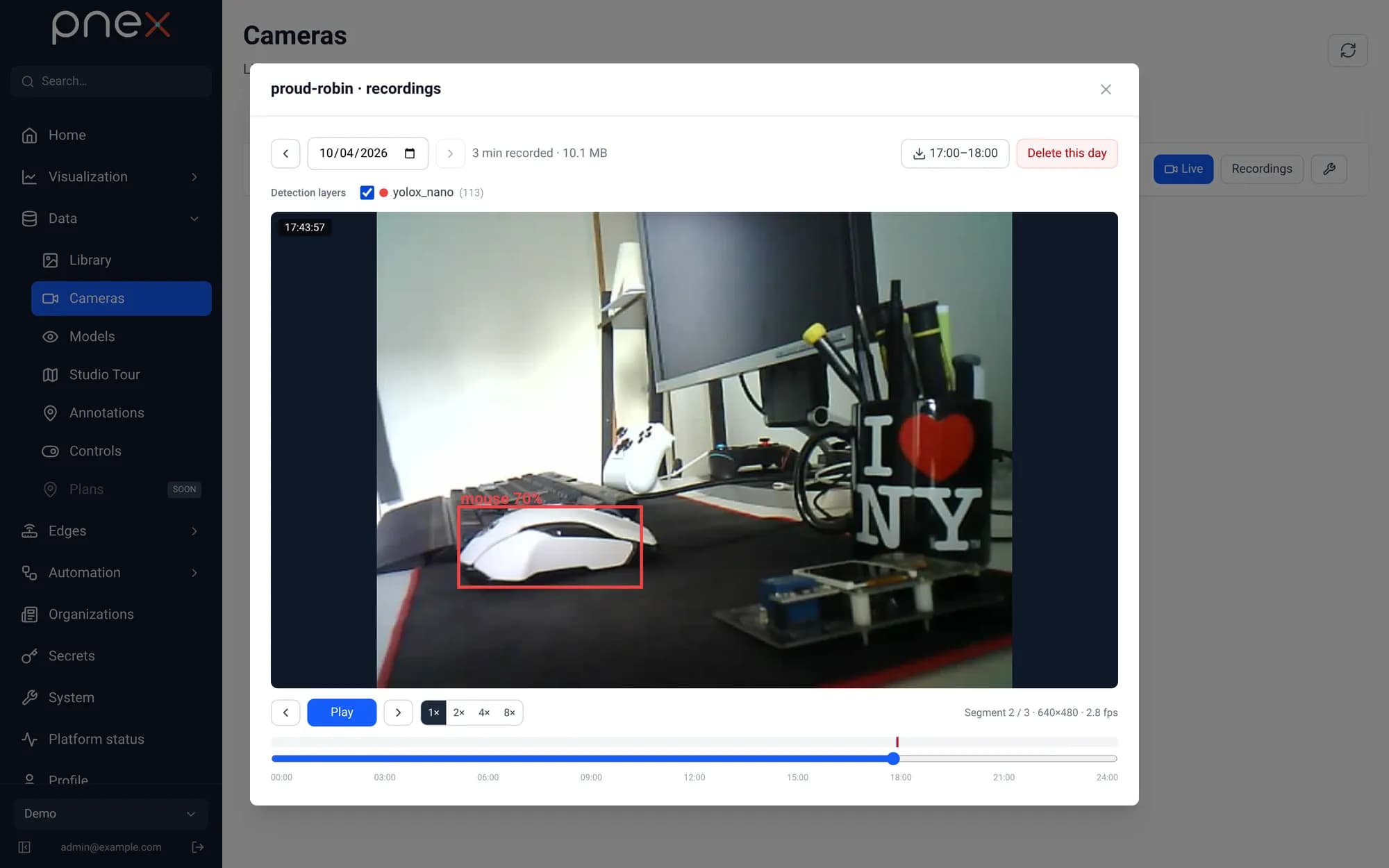
A layer stores only the boxes (label, score, position) in OpenObserve — a few hundred bytes per analysed frame instead of a second, annotated video. Layers need no wiring to the recorder: any detection node with Record the detections as a camera layer, in any flow, adds its own layer, named after the node (or the model). Their retention follows the organization's OpenObserve retention.
IP cameras are not listed under Cameras: the recordings of a stream are under Recordings on its row in Audio streams, and detection layers are kept for camera devices only.
Sizing
An ESP32-CAM in VGA at quality 12 sends 15–30 KB per frame. At 5 fps that is about 360 MB per hour of continuous recording per camera. YOLOX-nano analyses a frame in about 30 ms on a desktop CPU; larger models (YOLOX-l, ~1.4 s) suit a sampled rate rather than every frame.